 Claude skill
Grade, cut out and clean up your footage inside Claude
A free Claude skill. You film the clip, Claude does the edit through Higgsfield: a color grade, a cut-out and a clean up, one step at a time, and it asks before it spends a single credit. Plus the one-minute setup, a paste-in prompt and 20 edit prompts.
By Josh Pocock · Nov 9, 2026 · v1.0 · 6 min read
 Claude Code
On this pageThe one prompt
The one prompt
Connect Higgsfield and install the skill (both below, once). Then upload your best clip and type:
Grade this warm and cinematic, then show me a preview.
- 01Claim 3 free daysNew Higgsfield users
- 02Connect HiggsfieldOne minute, in Claude's connectors
- 03Upload the skillmiracle-editor.zip, once
- 04Upload a clipSay what you want. Claude asks before credits
You don't need to name the skill. If Claude doesn't pick it up, start your message with "Use the Miracle Editor skill".
Get the skill
On the Claude app
- Download miracle-editor.zip from the GitHub page. Don't unzip it.
- In claude.ai open Settings > Capabilities and turn on Code execution and file creation if you see it. Skills need it.
- Under Skills, click Upload skill and pick
miracle-editor.zip. - Make sure Miracle Editor is switched on. Start a new chat with Higgsfield on and upload a clip.
Claude Code, one paste
Install the Miracle Editor skill: clone https://github.com/joshpocock/miracle-editor into ~/.claude/skills/miracle-editor, then confirm the skill loads.
By hand
git clone https://github.com/joshpocock/miracle-editor ~/.claude/skills/miracle-editor
On Windows the folder is C:\Users\[you]\.claude\skills\miracle-editor. Restart Claude Code after.
Connect Higgsfield to Claude
About one minute. Works on claude.ai and the Claude desktop app. New to Higgsfield? Make your account with the 3 free days link first.
- In Claude, open Settings > Connectors.
- Click Add custom connector.
- Paste
https://mcp.higgsfield.ai/mcpand click Add. - Sign in to Higgsfield and click Allow.
- Start a new chat. Open the tools menu under the message box and check the Higgsfield tools are switched on.
The connector link
https://mcp.higgsfield.ai/mcp
Check it worked
Check you can see my Higgsfield tools, then tell me in two lines what you can edit for me.
On Claude Code
claude mcp add --transport http higgsfield https://mcp.higgsfield.ai/mcp
Then type /mcp inside Claude Code and sign in to Higgsfield.
No install? The paste-in prompt
The same editor as one prompt. Start a new chat with Higgsfield on, upload your clip and paste this:
You are my video editor, working through the Higgsfield connector. Take my footage through these jobs in order, one at a time, with before and after for each:
1. COLOR GRADE. Use /miracle color grading if available, else Higgsfield's /color-grade: a look or my reference stills, preview first, at most three small tweaks. Protect skin tones.
2. CUT-OUT. Use /miracle rotobrush if available, else Higgsfield's background removal on the video. For text behind me, use /text-behind.
3. CLEAN UP. Use /miracle clean up if available, else (clips of 4 to 30 seconds) Higgsfield's video edit workflow to remove the object and keep my motion. One object per pass.
4. OFFER. For the free trial, run /miracle offer or open Higgsfield's trial screen and give me the terms word for word.
Rules: tell me before any step that uses credits and wait for my yes. Only use free trial generations when I say so. Never buy anything for me. Plain words. Check every result. Give me download links at the end.
First check you can see the Higgsfield tools. If not, tell me how to connect them and stop.
What the editor does
The Miracle Editor tells Claude which Higgsfield tool to use for each editing job, in which order, and what to check before it shows you the result.
| Job | What happens | Credits |
|---|---|---|
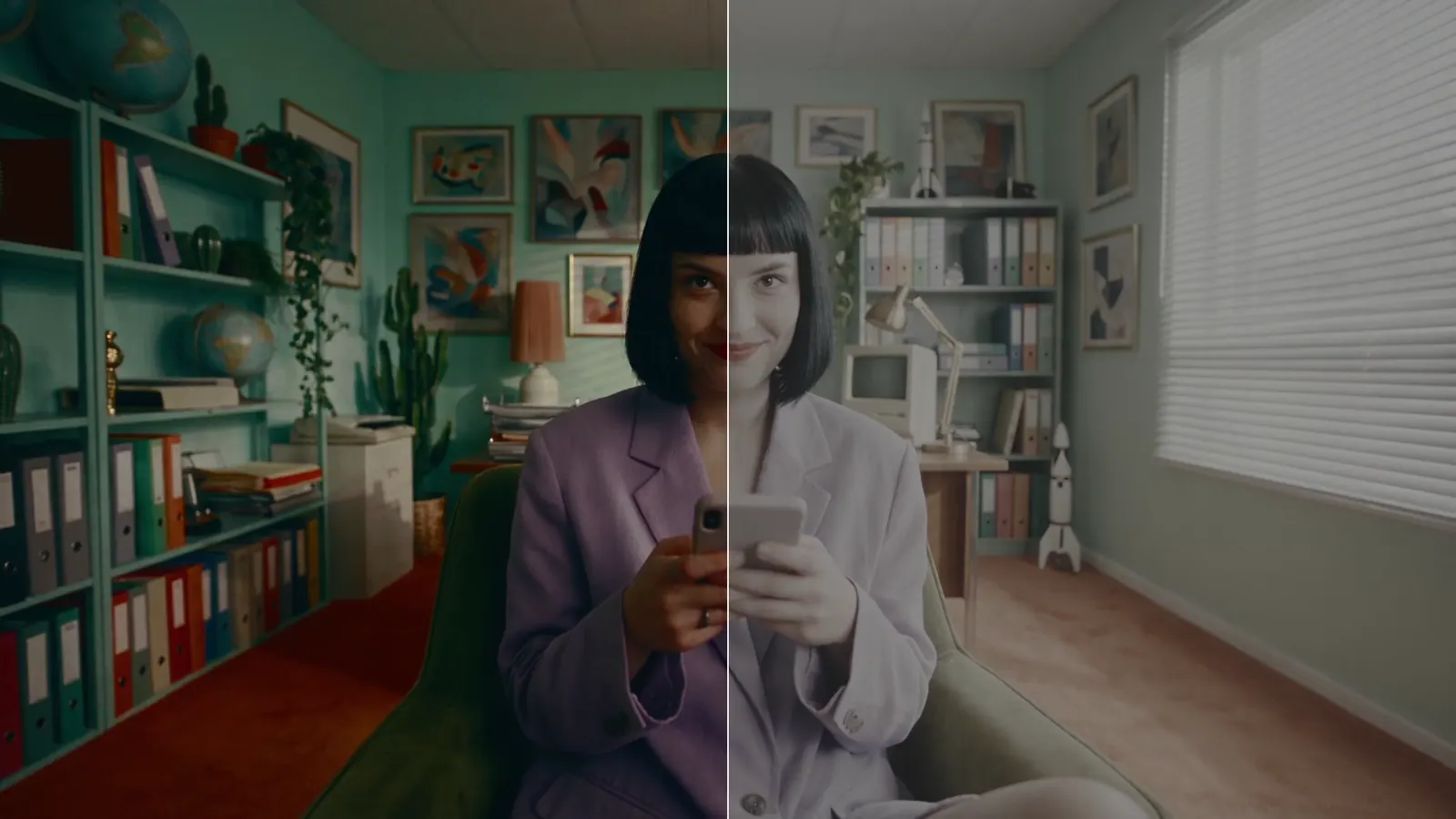
| Color grade | Flat footage gets a finished look. Your clip stays your clip: only color, tone and film texture change. | Asks first |
| Cut-out (rotobrush) | Your subject is cut out of the background on every frame. Use it for text behind you, or a new background. | Uses credits, asks first |
| Clean up | A sign, a stray person or an object is removed and the background rebuilt behind it. | Uses credits, asks first |
| /miracle offer | Opens the Higgsfield free trial for new users. | Free to check |
It uses the /miracle commands when your Higgsfield account shows them. When it doesn't, the skill does the same job with Higgsfield's own grade, cut-out and edit tools, so it works either way.
How to use it
Do the jobs in this order. The grade goes first so every later step carries the final look.
- Upload the original file. Not a screen recording, and not a clip saved back from a social app. Compression makes every step worse.
- Say what it's for and how it should feel. "A Reel, warm and nostalgic" is enough.
- Grade. Claude shows a preview. Say "warmer", "softer" or "protect the skin more" until you like it, then let it render.
- Clean up. Name one object and where it is. Check it. Then the next.
- Cut out. Only if you want text behind your subject or a new background.
- Save everything. Ask for download links at the end. Files in the working space are temporary.
- Good at: grading real footage to a look, matching several clips to one grade, saving a look as a LUT file for your own editor, cutting a subject out on every frame, words behind your head, removing one object from a steady short shot.
- Not good at: moving the lights in your shot, turning a day shot into a real night scene, cleaning up a fast whip pan, and long clips: the video edit route takes 4 to 30 seconds at a time.
- Have After Effects or DaVinci Resolve? Higgsfield also has
/shot-cleanup(After Effects) and/color-grading(DaVinci Resolve Studio). They run on your own computer through Claude Code or the Code tab of the Claude desktop app.
Your 3 free days, planned
Higgsfield gives new users 3 days free. Sign up through my 3 free days link, or type /miracle offer in a chat with Higgsfield connected.
- Read the trial terms on the screen. A card is needed, and the trial rolls into a paid plan unless you cancel.
- Set a reminder for day 3 now.
- To stop the renewal at any time, type "Cancel auto-renewal on my Higgsfield trial" in Claude.
- Free trial generations are opt-in. Say "use my free trial generations" when you want Claude to use them.
- Day 1: set up and grade. Connect Higgsfield, upload the skill, and grade three of your own clips. Save the look you like best as a LUT. Set your day 3 reminder.
- Day 2: clean up and cut out. Take your best clip, remove the one thing that bugs you in it, and try text behind you on a talking clip.
- Day 3: finish one real video. Edit one complete piece with what you made, post it, then decide whether to keep Higgsfield before the trial ends.
Grade looks to paste
Upload your clip first, then paste. Fill in anything in [brackets].
Warm cinematic
Grade this clip with a warm cinematic look. Deepen the shadows a little, keep skin tones natural and do not crush the blacks. Show me a preview before you render.
Match my reference stills
Grade my clip to match the look of the stills I uploaded. Match the color and contrast, protect the skin, and show me a before and after preview.
Cool moody night
Give this clip a cool, moody look: blue-green shadows, soft highlights, a gentle vignette. Keep faces natural, not grey. Preview first.
Bright and clean
Make this look bright, clean and modern, like a premium product video. Lift the shadows a little, keep whites white and colors true. Preview first.
Vintage film
Give this a vintage film look: warm highlights, soft contrast, fine grain and a little halation around the bright spots. Keep it subtle.
Silver and dramatic
Give this a bleach bypass look: silvery, high contrast, low color. Keep skin from going grey. Preview first.
Same look on every clip
Use exactly the same grade you just made on this next clip, so the two cut together without a jump in color.
Save the look as a LUT
Export the grade you just made as a .cube LUT file in a zip, so I can reuse it in my own editor.
Before and after wipe
Use Higgsfield's /grade-wipe on my vertical clip: a wipe from the flat original to the graded version early in the clip, with Before and After labels.
Cut-outs and clean ups to paste
Cut out my subject
Cut [the person or object, e.g. the woman in the yellow coat] out of this clip on every frame and give me the cut-out file. Tell me the credit cost first.
Text behind me
Use /text-behind on my talking clip. Put the key word from each point I make behind my head as I say it. Tell me the credit cost first.
Freeze frame name tag
Use /freeze-frame on this clip. When I say [the name or item], freeze the frame and show it as a tag next to me.
Before and after card
Use /over-the-shoulder on this clip. When I say the numbers, show a card beside me with before [value] and after [value].
Remove a sign
Remove [the object and where it is, e.g. the red sign on the wall behind the skater] from the whole clip and rebuild the wall behind it so nobody can tell it was there. Tell me the cost first.
Remove a stray person
Remove [the person and where they are, e.g. the man walking past on the left] from this clip. Keep everything else exactly the same: my movement, the framing and the timing.
Remove a small object
Remove [the object, e.g. the coffee cup on the desk] from this clip. One object only. Show me the result before doing anything else.
The trial and the whole edit
Unlock the trial
/miracle offer
What my trial covers
Which Higgsfield models can I use my free trial generations on, and how long do I have left?
Stop the renewal
Cancel auto-renewal on my Higgsfield trial.
Do the whole edit
I am editing this clip for a [Reel / ad / YouTube video]. It should feel [mood]. Step 1: color grade it and show me a preview. Step 2: remove [object]. Step 3: cut out [subject] so I can put text behind them. Ask me before any step that uses credits, and give me download links at the end.
If something goes wrong
| Problem | Fix |
|---|---|
| I can't see the Higgsfield tools in my chat | Start a new chat and switch Higgsfield on in the tools menu under the message box. Still missing? Open Settings > Connectors and check it says connected. |
| Every Higgsfield step fails with a sign-in error | Open Settings > Connectors, disconnect Higgsfield, then connect it again and click Allow. |
| /miracle doesn't show up when I type it | The skill still works. It does the same jobs with Higgsfield's grade, cut-out and edit tools. Just ask in plain words. |
| I don't see Skills in Settings | Turn on code execution and file creation under Settings > Capabilities first. If Skills still isn't there, use the paste-in prompt. |
| Claude ignored the skill | Start your message with "Use the Miracle Editor skill", and check the skill is switched on. |
| The grade is too strong | Say "make it softer, about half as strong" or "protect the skin more". Small changes, one at a time. |
| The cut-out has holes on hair or dark clothes | Pick a clip where the subject stands out from the background, with even light. |
| The clean up looks warped | Try a steadier shot, a shorter clip, or one object per pass. Describe exactly where the object is. |
| My upload failed | Ask Claude for the upload button, or use a smaller file. Trim long clips to the part you need. |
| Claude said a step needs credits | That's the skill doing its job. Say yes, say no, or say "use my free trial generations" if you're on the trial. |
The fine print
This is a paid partnership with Higgsfield. They sponsored the video this guide comes from. The 3 free days link is my partner link.
The skill is free. MIT licence, no signup. The edits run on your own Higgsfield account.
The free trial is Higgsfield's. 3 days free for new users. A card is needed and it renews into a paid plan unless you cancel. Check Higgsfield's own trial screen for the current terms and which models it covers.
The /miracle commands come from Higgsfield. They may not show on every account yet. The skill does the same jobs without them.
Use footage you have the rights to. Your own clips, or ones you're licensed to edit.
You can disconnect any time. Remove Higgsfield in Claude under Settings > Connectors.