 Guide
Plan your week with Claude, straight from your real calendar
Add One to Claude once, set your calendar to read only, and ask Claude what your week looks like and what you can move. Made in paid partnership with One (#ad), with the eight prompts I use to plan my week.
By Josh Pocock · Nov 12, 2026 · v1.0 · 4 min read
On this pageThe one prompt
The one prompt
Connect One to Claude once (six steps below, about a minute), then paste this into a new chat:
Using One, what does my week look like, and what can I move?
- 01Add custom connectorCustomize > Connectors in Claude
- 02Name it OnePaste the link below
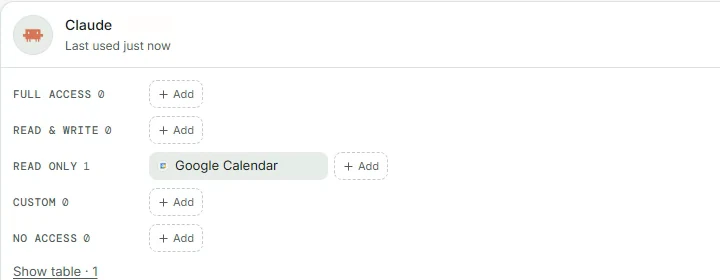
- 03Calendar on Read onlyYou pick what Claude can reach
- 04Ask about your weekClaude asks before each action
The connector link
https://mcp.withone.ai/mcp
Make your free One account first at withone.ai and connect your calendar there. It's free to connect.

The setup, click by click
This is exactly how it works on claude.ai today. The Claude desktop app has the same screens.
1. Add a custom connector
In Claude, open Customize, then the Connectors tab. Click Add, then Add custom connector.

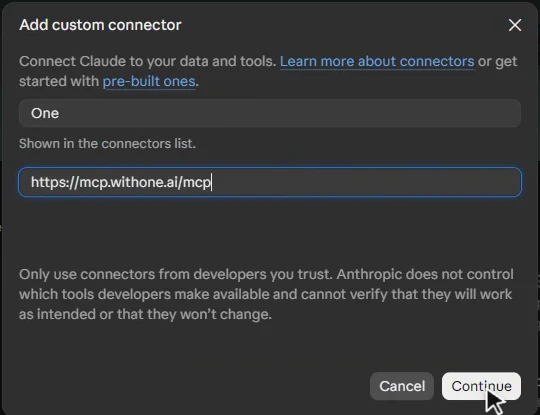
2. Name it One and paste the link
Type One as the name and paste https://mcp.withone.ai/mcp as the URL. Click Continue.
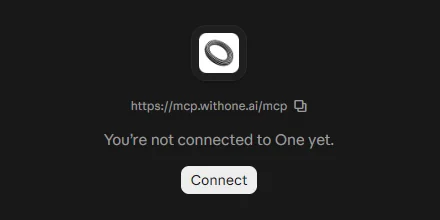
3. Add, then Connect
Click Add. Claude opens One's connector page and says you're not connected yet. Click Connect.
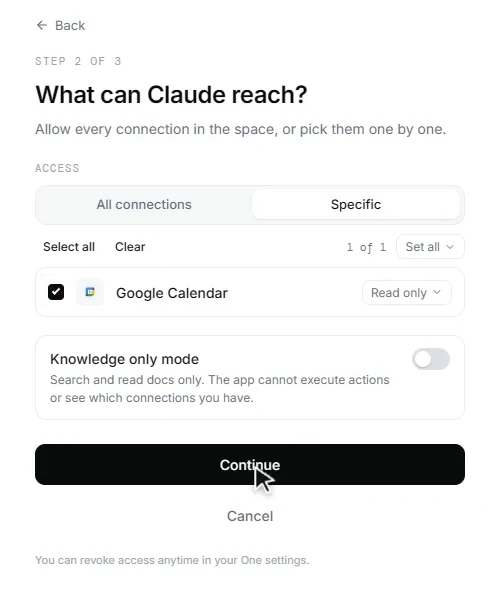
4. Pick what Claude can reach
One opens its own screen. Choose where Claude works (I picked Production) and click Continue. Then pick Specific and set Google Calendar to Read only.
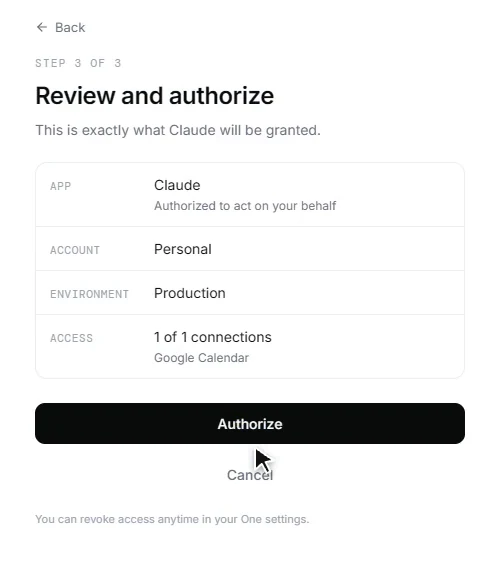
5. Authorize
One shows exactly what Claude will get. Click Authorize. You land back in Claude with Connected to One.

6. Turn One on in a new chat
Start a new chat, click +, open Connectors and make sure One is switched on. Then paste the prompt above.
The prompts I use to plan my week
Start each one with "Using One" so Claude knows to check your calendar. Paste them as they are, or swap in your own day or time.
See the week and what can move
Using One, what does my week look like, and what can I move?
What you get: your week laid out day by day, plus what you could move or skip.
Find time to focus
Using One, find me two 90-minute focus blocks this week where nothing is booked.
What you get: two open 90-minute slots you can block off for deep work.
Start tomorrow right
Using One, what's on my calendar tomorrow, and what should I do first?
What you get: tomorrow at a glance and the one thing to start with.
Walk into your next meeting ready
Using One, prep me for my next meeting: who is on it, what it is about, and what I should know going in.
What you get: a short brief on your next meeting before you walk in.
Cut the meetings that could be an email
Using One, which of my meetings this week could be an email or a shorter call?
What you get: the meetings worth shrinking, so you get hours back.
See every deadline coming
Using One, list every deadline in the next 14 days in order, and tell me which one is at risk.
What you get: your next two weeks of deadlines in order, with the risky one called out.
Find out where last week went
Using One, look at last week's calendar. Where did my time actually go? Group it by type.
What you get: last week's hours grouped by type, so you see where the time went.
Plan Monday hour by hour
Using One, plan my Monday hour by hour around what's already booked.
What you get: an hour-by-hour Monday that works around your fixed meetings.
One real week, start to finish
I ran the week prompt on my own calendar on Nov 12. Names stay out of this guide, so here is what happened in plain words.
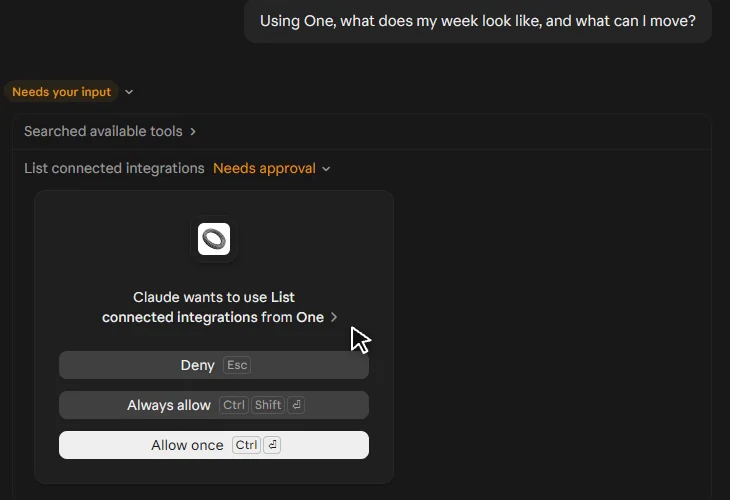
- Claude asked first. Before it touched my calendar it asked for permission to use One. I clicked Allow once, a few times, one for each action.
- It laid out my week. Day by day, from my real calendar, not a guess.
- It told me what I could move. It flagged an optional meeting I could skip to free up time.
- It didn't move anything itself. It ended by noting my calendar is connected read only, so the changes were mine to make.
You stay in control
- Claude asks before each action. You see a prompt with Allow once, Always allow or Deny. It gets permission, never your password.
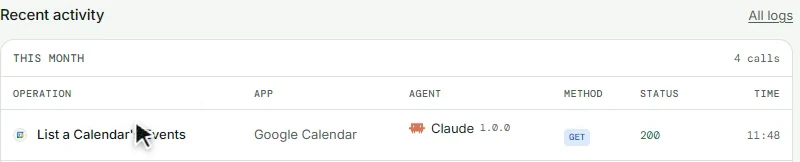
- You see every call in One. One's home page shows what Claude can reach and its level, and Recent activity lists each thing it did.
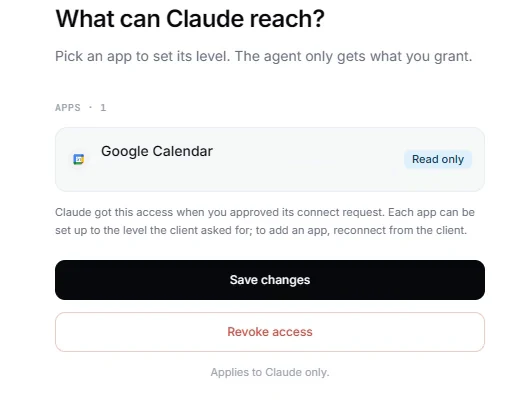
- One click cuts it off. Open Manage access on Claude's card and click Revoke access.
The fine print
This is a paid partnership with One. One sponsored the Reel this guide comes from. The setup and the real run are from my own account.
Read only is a setting you choose. I set my calendar to read only. You can pick a different level per app, and change it or revoke it any time in One.
It's free to connect. You need a Claude account and a free One account.
Screens change. These are the screens on Nov 12, 2026. If a button moves, look for Connectors in Claude's settings.