Claude Code Plan Mode: How and When to Use It
Claude Code plan mode explained: what it does, how to enter and exit it, how to review and approve a plan, and when to use it on client projects.
Josh Pocock4 min read


AI Coding
Plan mode
Stride AI Academy
Claude Code plan mode makes Claude research and propose changes without editing your files. Turn it on with Shift+Tab, by starting a prompt with /plan, or with claude --permission-mode plan. Claude reads the code and writes a plan, and nothing changes until you approve it.
This guide covers how plan mode works, how to review and approve a plan, how to make it the default for a project, and when it's worth using. Checked against Claude Code's permission modes docs, October 2026.
What plan mode does
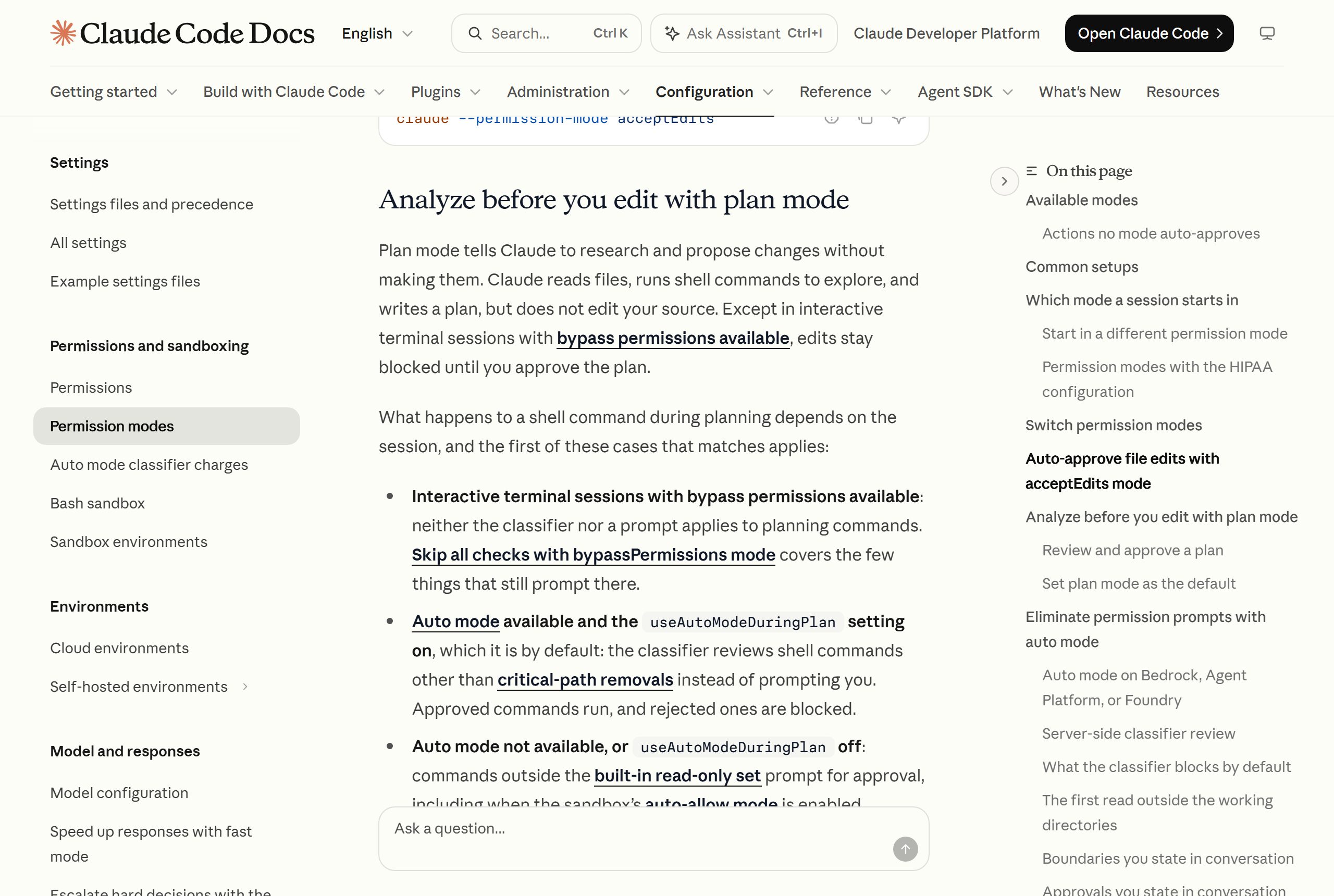
Plan mode is one of Claude Code's permission modes. In it, Claude reads files, runs shell commands to explore and writes a plan, but doesn't edit your source. Edits stay blocked until you approve the plan.
That makes it a review point before any code changes, which is the cheapest place to catch a misunderstanding. A wrong plan costs a minute to correct. Wrong code across ten files costs a lot more.
A change with plan mode
- 1Describe the change
- 2Claude exploresReads files, runs read-only checks
- 3Claude presents a plan
- 4You review itApprove, edit or keep planning
- 5Claude makes the changes
Choose "keep planning" and say what to change, as many times as you need.
How to turn it on
Three ways:
- Shift+Tab cycles the permission modes in the terminal. The status bar shows
⏸ plan mode onwhen you're in it. /planbefore a prompt plans just that one request.- Start in it:
claude --permission-mode plan.
Press Shift+Tab again to leave plan mode without approving anything. In the VS Code extension and the desktop app, pick the mode from the mode selector.
How shell commands behave while planning
Claude can still run commands to explore. What happens to them depends on your setup: when auto mode is available (and its useAutoModeDuringPlan setting is on, the default), a classifier reviews each command instead of prompting you; otherwise, anything outside Claude Code's built-in read-only commands asks for your approval. Either way, your source files aren't edited.
Reviewing and approving the plan
When the plan is ready, Claude presents it and asks how to proceed. You can:
- Approve and let Claude continue, either in auto mode or auto-accepting edits, depending on what's available to your session
- Approve and review each edit manually
- Keep planning, and tell Claude what to change
Press Ctrl+G to open the plan in your text editor and edit it directly before Claude starts.
What to check in a plan:
- The files it will touch. Anything surprising? A plan to "fix the booking form" that edits the payment code needs a question.
- What it won't do. Ask it to list what's out of scope.
- How it will test. A plan should end with how Claude will check the change works.
- Assumptions. Plans often contain a guess ("I assume dates are stored in UTC"). Confirm or correct each one.
Make it the default for a project
For projects where every change deserves a plan, such as a client's live system, set it as the starting mode in the project's .claude/settings.json:
{
  "permissions": {
    "defaultMode": "plan"
  }
}
That applies to terminal sessions in that project. VS Code has its own setting, claudeCode.initialPermissionMode, in your user settings.
You can also put it in words in your CLAUDE.md: "Use plan mode for any change under src/billing/."
When to use plan mode
Use it for:
- Changes that touch several files or anything you don't fully understand yet
- Client systems that are live and handle real data or messages
- Unfamiliar codebases, where you want Claude to explain before it changes anything
- Anything involving money, permissions, data deletion or outbound messages
Skip it for:
- Small, obvious edits ("fix the typo in the footer")
- Throwaway prototypes
A simple rule for client work: if a mistake would be visible to the client's customers, plan first.
Plan mode for non-developers
If you don't read code, plan mode matters even more. The plan is written in plain language, so you can check the approach without reading the code. Ask Claude to "explain the plan as if I'm not a developer" if it's too technical. See Claude Code for non-developers for the rest of that workflow.
Learn to build with Claude Code
The Stride AI Coding course teaches Claude Code and Codex for building client tools, written for non-programmers, with weekly live calls to review your builds. Many of the free guides cover Claude Code setups.
FAQ
How do I go into plan mode in Claude Code?
Press Shift+Tab in the terminal until the status bar shows plan mode, start a single prompt with /plan, or launch with claude --permission-mode plan. In VS Code and the desktop app, choose plan from the mode selector.
How do I get out of plan mode?
Approve the plan, which switches the session to an editing mode so Claude starts work, or press Shift+Tab again to leave plan mode without approving anything.
Can Claude run commands in plan mode?
Yes, to explore. It reads files and can run shell commands, but it doesn't edit your source until you approve the plan. Depending on your setup, commands are either reviewed by the auto mode classifier or prompt you if they're outside the read-only set.
Does plan mode use more tokens?
Planning uses tokens like any other turn, because Claude still reads files and writes a plan. Anthropic's costs docs recommend it for complex tasks, because catching a wrong approach before implementation avoids expensive rework.
Should I always use plan mode?
Not for small, obvious edits. Use it for changes across several files, live client systems, unfamiliar code and anything involving money, data or outbound messages. You can make it the default for a specific project in .claude/settings.json.